
Build your own review card
A Telkaro review card is ordinary Bricks: a query loop over the post type Google reviews, with Telkaro elements (or dynamic tags) inside it. Everything you know about styling Bricks applies.
Anatomy of a review card
Section titled “Anatomy of a review card”Each part of the card and its header points to the Telkaro element that shows it and the dynamic tag behind it. Use the element for a ready-made part with sensible settings, or the tag in any Bricks element (Heading, Basic text, Image, Button…) for full control.
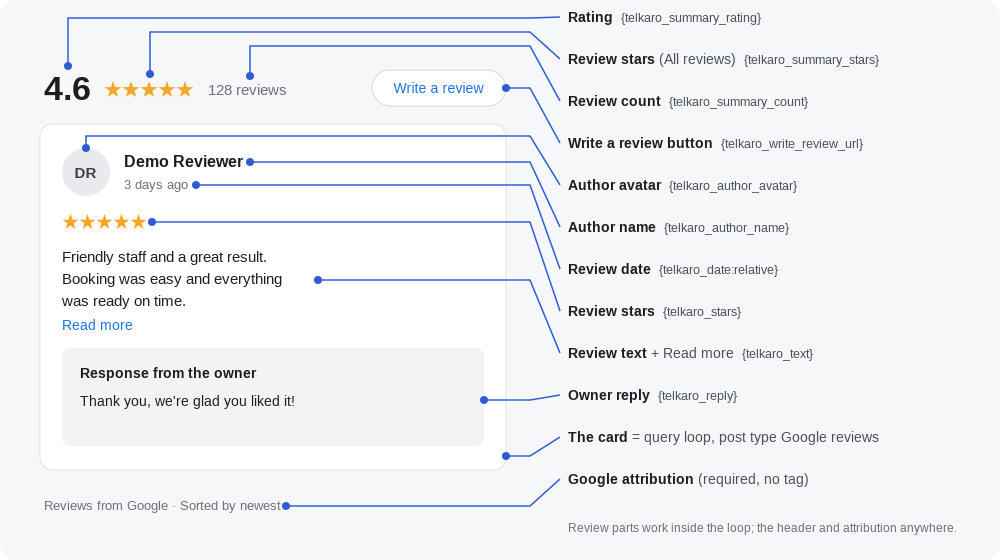
Build it step by step
Section titled “Build it step by step”-
Add a container for the list. For example a Block with display Grid and three columns.
-
Add the card and turn on the query loop. Inside it, add a Block for one card and enable Use query loop. Set Post type to Google reviews, Order by to Date and Order to Descending (newest first). Set Posts per page to how many reviews you want.
-
Fill the card. Add Telkaro elements from the Telkaro category in the elements panel: Author avatar, Author name, Review date, Review stars, Review text and Owner reply. They show real reviews in the builder right away.
-
Add the header (optional). Outside the loop, add Rating, Review stars (set Rating of to All reviews), Review count and Write a review button.
-
Add the attribution. Below the list, add Google attribution and set Sorted by to match your loop (here Newest first). This is required by Google.
Using dynamic tags instead of elements
Section titled “Using dynamic tags instead of elements”Every part is also a dynamic tag. In any Bricks element, click the dynamic data icon and look for the groups Telkaro: review (in a loop) and Telkaro: rating summary. Examples:
- A Heading with
{telkaro_author_name}. - An Image with
{telkaro_author_avatar}as its source. Reviewers without a photo have an empty value; show{telkaro_author_initials}in that case, or use the Author avatar element, which does it for you. - A Basic text with
{telkaro_date:relative}for “3 weeks ago”, or{telkaro_date:j F Y}for a date format of your choice. - A Button linking to
{telkaro_write_review_url}.
All tags and their arguments: Dynamic tags.
One business per loop
Section titled “One business per loop”A loop shows the reviews of all businesses linked to the site. To show one business, open the loop’s query settings and add a meta query:
| Setting | Value |
|---|---|
| Meta key | telkaro_location_id |
| Meta value | the Location ID from Settings → Telkaro → Locations |
| Compare | = |
Also enter that Location ID in the header elements and in Google attribution, so the rating, count and Google link belong to the same business.
Featuring certain reviews
Section titled “Featuring certain reviews”You may choose which reviews to show, as long as you say so on the page:
- Only 4 and 5 stars: add a meta query on
telkaro_rating, type Numeric, compare>=, value4. Then fill in Filter notice in Google attribution, for example “Showing reviews with 4 and 5 stars”. - Highest rated first: order by the meta key
telkaro_rating(numeric, descending) and set Sorted by to Highest rating first in the attribution.
Never change the review text, rating or author: Telkaro and Google’s rules don’t allow it. See Google’s rules.
Styling tips
Section titled “Styling tips”- Style each element in its panel, or give it a global class, as with any Bricks element.
- Review text and Owner reply shorten long texts with a Read more button. Change the
number of lines in the element, or set
--telkaro-clamp-lineson a parent. - Star colours and sizes are settings of Review stars, or the CSS variables
--telkaro-star-fill,--telkaro-star-empty,--telkaro-star-sizeand--telkaro-star-gap. - Telkaro’s own CSS has zero specificity, so your styles always win.